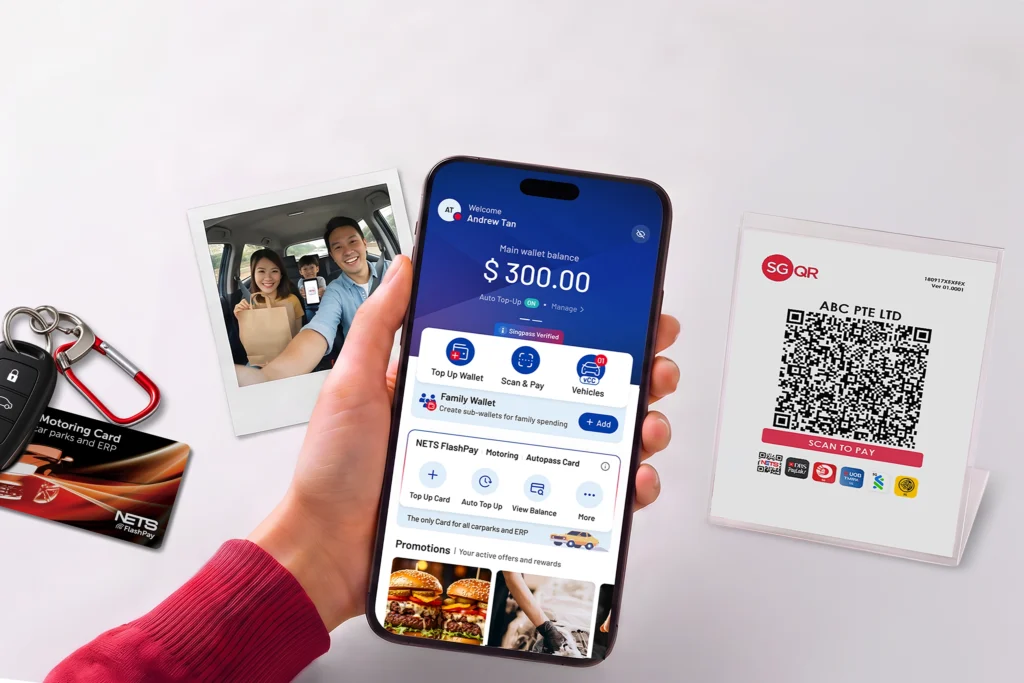


NETS App

The all-in-one mobile app for
all your motoring, transit and
retail payment needs.

The all-in-one mobile app for all your motoring, transit and retail payment needs.

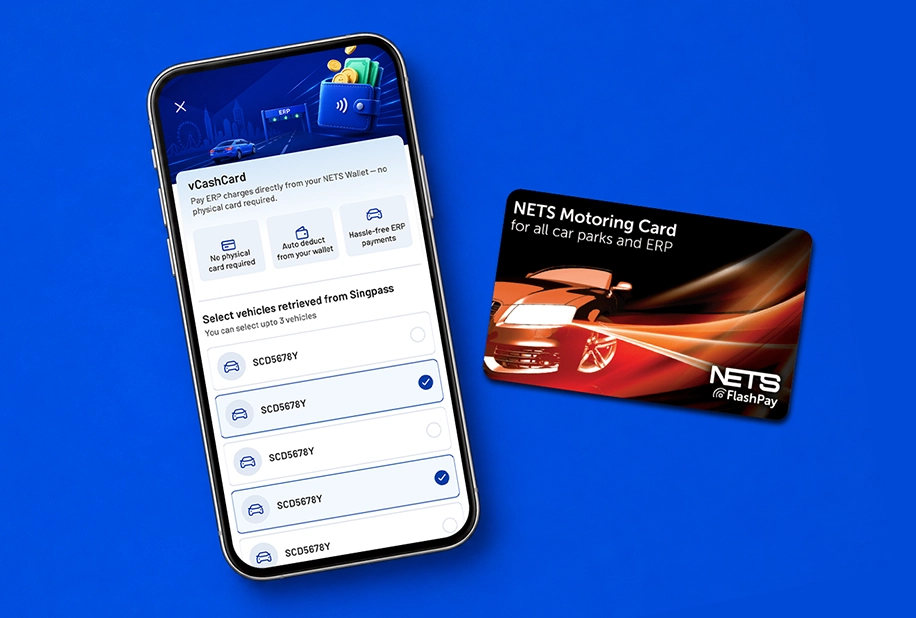
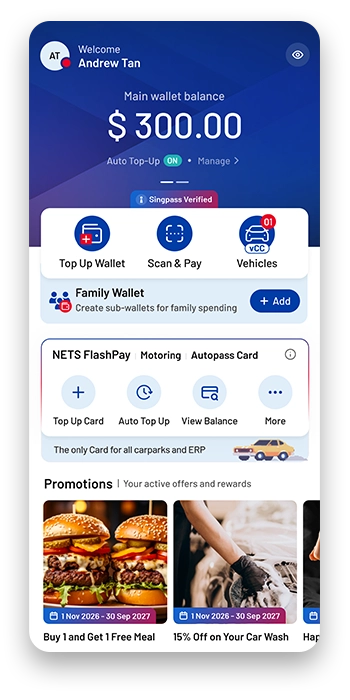
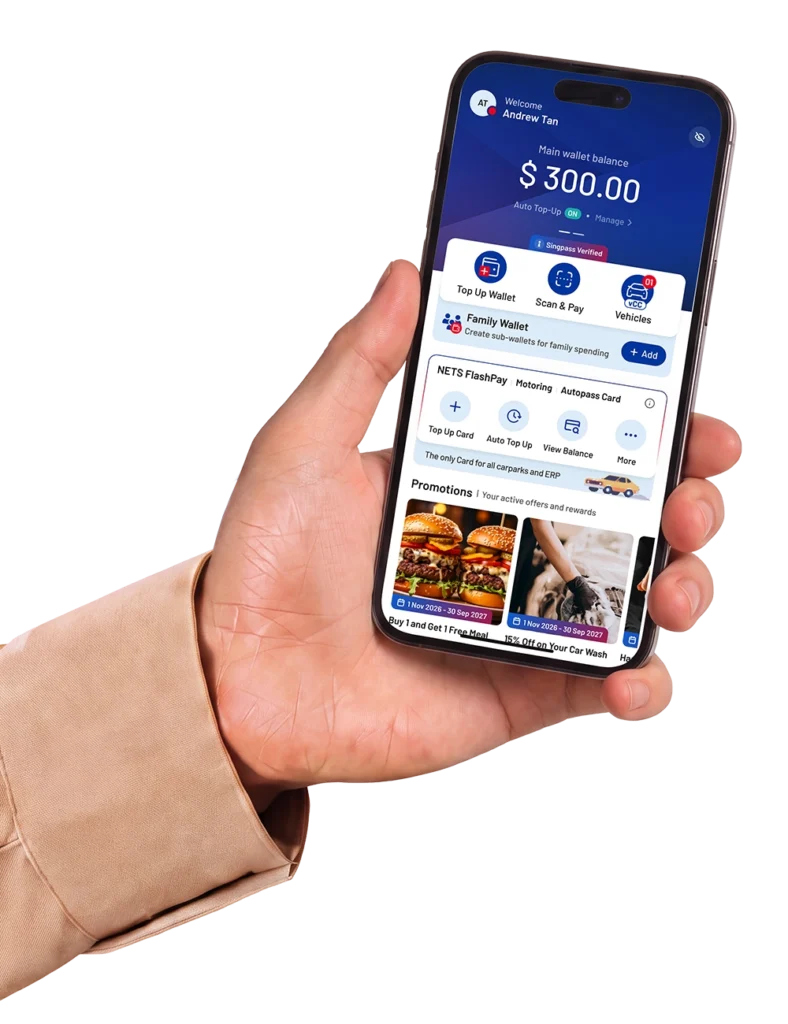
The NETS App allows you to conveniently manage your transactions on NETS Motoring Card, NETS FlashPay Card, NETS Prepaid Card and vCashCard while on the go.

All you need is a single NETS Account login to gain quick access to the payment services you need. From checking your balance and transaction history, to making card top-ups and setting up your Auto Top-Up (ATU) service, payment just became easier.

The NETS App is compatible with NFC-enabled Android and iOS devices

Benefits

Why NETS App?


One access for all cards


Gain quick access to NETS Motoring Card,
NETS FlashPay, NETS Prepaid Card and vCashCard services with 1 NETS account login.

Convenient Top-up

Top up your card at your own convenience without needing to queue.

Activate ATU and never worry about having insufficient funds in your card again.

Easy transaction tracking

Check your card balance and expiry, and view your transaction history anytime, anywhere.

View and download your transaction details anytime, anywhere.

One access for all cards

Gain quick access to NETS Motoring Card,
NETS FlashPay, NETS Prepaid Card and vCashCard services with 1 NETS account login.

Convenient Top-up

Top up your card at your own convenience without needing to queue.

Activate ATU and never worry about having insufficient funds in your card again.

Easy transaction tracking

Check your card balance and expiry, and view your transaction history anytime, anywhere.

View and download your transaction details anytime, anywhere.

Make the most of your NETS App

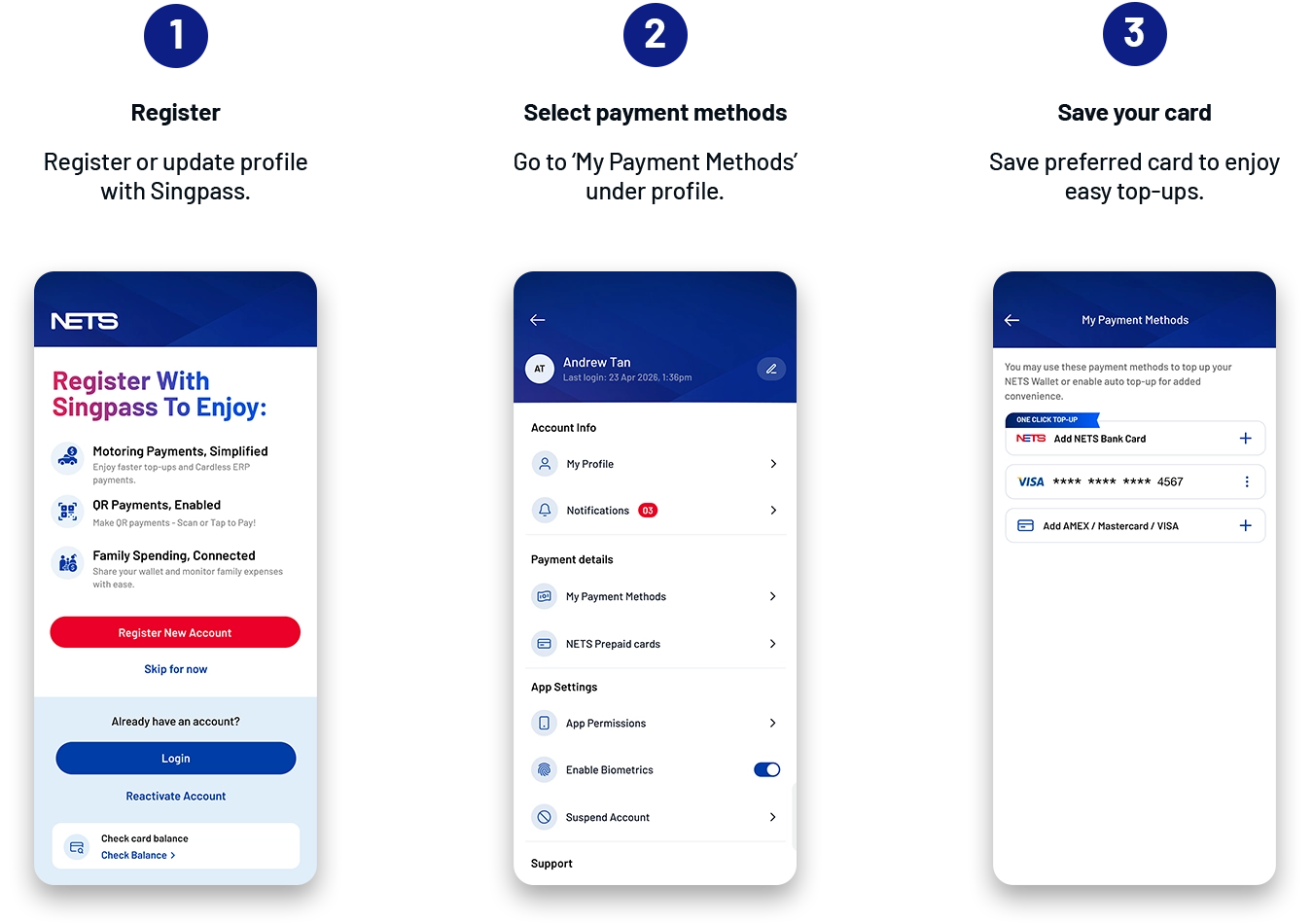
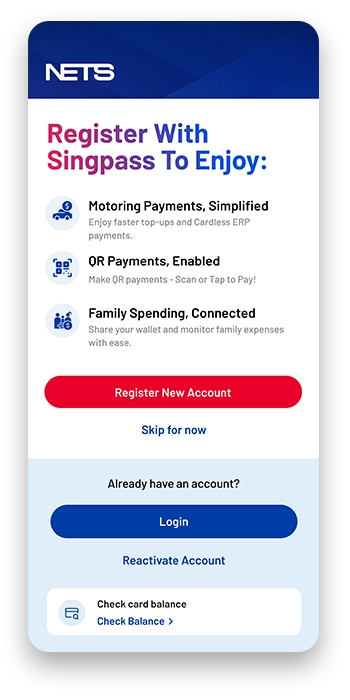
Step-by-step guide on how to register for NETS Account and login to NETS App:

How to register for NETS Account and login to NETS App

Step-by-step guide on how to save your payment methods for top up on NETS App:

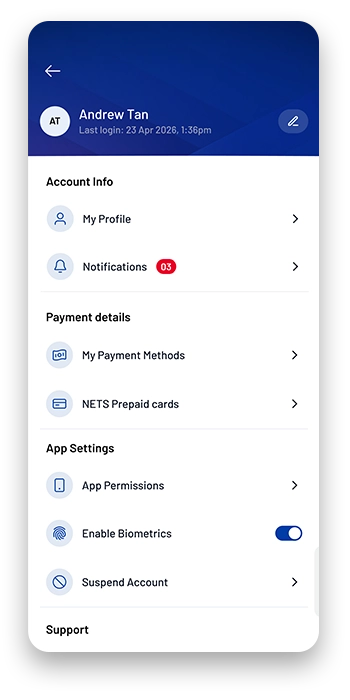
After login to NETS Account, select the profile icon on the top right of the NETS App home screen

Select “Payment Methods”

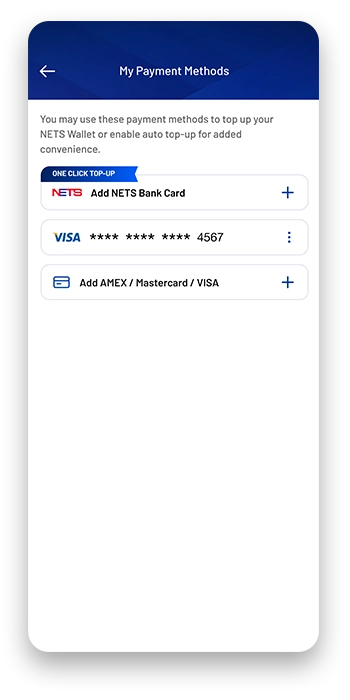
Select “Add NETS Bank Card” or “Add Amex/ Mastercard/ Visa”

Input your NETS enabled ATM, credit/debit card details and submit

After login to NETS Account, select the profile icon on the top right of the NETS App home screen
Select “Payment Methods”
Select “Add NETS Bank Card” or “Add Amex/ Mastercard/ Visa”
Input your NETS enabled ATM, credit/debit card details and submit

Step-by-step guide on how to top up NETS FlashPay Card and NETS Motoring Card on NETS App:

On the NETS App home screen, select “Top-up” under NETS FlashPay Card, Motoring Card

Scan your NETS FlashPay Card or NETS Motoring Card with your phone NFC scanner at the back of your mobile

Input your preferred top up amount

Review top-up amount

Top up with a saved payment method or add a new payment method

Scan your NETS FlashPay Card or NETS Motoring Card with your phone NFC scanner again

Top up completed!

On the NETS App home screen, select “Top-up” under NETS FlashPay Card, Motoring Card
Scan your NETS FlashPay Card or NETS Motoring Card with your phone NFC scanner at the back of your mobile
Input your preferred top up amount
Review top-up amount
Top up with a saved payment method or add a new payment method
Scan your NETS FlashPay Card or NETS Motoring Card with your phone NFC scanner again
Top up completed!

Note: Applicable to mobile phones with NFC scanners, for both iOS and Android versions

Download the NETS App now!

Frequently Asked Questions

You can use your NETS Account to sign in to the NETS App.

The NETS App replaces the NETS FlashPay Reader App. More services are coming soon to the NETS App.

Please open the NETS App on your mobile device and go to the sign-in page.

If you have forgotten your password, please select “Forgot Password” and follow the instructions to reset your password.

If you have forgotten your email address (used as your user ID), please select “Forgot Email” and follow the instructions to recover your email address.

You are not required to sign in to the NETS App if you wish to do a one-time top-up of your NETS FlashPay Card or the NETS Motoring Card.

Filter by Category

All Questions

NETS App is an Android and iOS application that allows you to perform the following NETS Motoring Card transaction using your mobile device:

  • Motoring Top Up*
  • Motoring Auto Top-Up (ATU) registration
  • Motoring Auto Top-Up Activation
  • Balance Enquiry
  • Card Expiry Enquiry
  • Transaction History

*Top-up fee applicable

You can use your NETS Account to sign in to the NETS App.

The NETS App replaces the NETS FlashPay Reader App. More services are coming soon to the NETS App.

Please open the NETS App on your mobile device and go to the sign-in page.

If you have forgotten your password, please select “Forgot Password” and follow the instructions to reset your password.

If you have forgotten your email address (used as your user ID), please select “Forgot Email” and follow the instructions to recover your email address.

You are not required to sign in to the NETS App if you wish to do a one-time top-up of your NETS FlashPay Card or the NETS Motoring Card.

The NETS App can be found on the Google Play Store or Apple App Store.

 After installation, you can launch the NETS App in 2 ways:

  1. For iOS users, you can locate the NETS App icon in your mobile device and launch it.
  2. For Android users, you can locate the NETS App icon in your mobile device and launch it. If NFC is not enabled, a prompt will appear to enable NFC. Select ‘Yes’ and your phone settings menu will launch for you to enable NFC. Alternatively, if your phone is NFC enabled, place the card against the back of your phone where the NFC antenna is located, the NETS App will launch automatically once it reads the NETS Motoring Card.

1. Top Up

  • Upon launching the NETS App, select ‘Top-Up’ under NETS FlashPay, Motoring Card.
  • You will be prompted to hold your NETS Motoring Card against the back of your mobile device to begin
  • Next, select the preferred amount for top-up
  • Proceed to key in your preferred credit/ debit card for the top-up transaction.
  • Enter the OTP to authorize the payment
  • You will be prompted to hold your NETS Motoring Card against the back of your mobile device to complete the Top-Up.

2. Auto Top-Up registration

Please have your NETS Motoring Card with you and follow the steps below to register ATU via the NETS App:

  • Upon launching the NETS App, select ‘Auto Top-Up’ under NETS FlashPay, Motoring Card
  • Select “Auto Top-Up Registration”
  • Complete the form with your preferred credit/debit card details and NETS Motoring Card CAN number
  • Proceed to ‘Submit’

3. Auto Top-Up Activation

Please follow the steps below to activate ATU via the NETS App:

  • Upon launching the NETS App, select ‘Auto Top-Up’ under NETS FlashPay, Motoring Card
  • Select “Auto Top-Up Activation”
  • Enter the 6-digit ATU activation code sent to you via SMS or email
  • Proceed to “Activate”
  • ‘ATU Activation Successful’ message will be displayed once ATU activation is completed.

4. Card Enquiry

You may do the following enquires using NETS App.

  • Balance Enquiry
  • Card Expiry Enquiry
  • Transaction History

Please follow the steps below to make the enquiries:

  • Upon launching the NETS App, select more ‘…’ under NETS FlashPay, Motoring Card
  • Select “Card Profile”
  • You will be prompted to hold your NETS Motoring Card against the back of your mobile device to begin
  • You will be able to read your NETS Motoring CAN number and expiry date.
  • Select back ‘<’ at the top left hand corner and you will be able to read your balance and see recent transaction history.
  • Select ‘History’ if you wish to see past transactions.

1. iOS Users

You may wish to try placing your NETS Motoring Card (vertically) behind the top edge of your iPhone to find a better connection with your iPhone’s NFC antenna.

2. Android Users

You may wish to try placing your NETS Motoring Card behind the centre of your Android phone to find a better connection with your phone’s NFC antenna. Otherwise, try placing behind the top or bottom of your phone as different phone models may have their NFC antenna set-up differently.

Android mobile devices will be required to run Android 5.0 or later. iOS mobile devices will be required to run iOS 9 to download NETS App. In order to read the NETS Motoring Card via the Near Field Communication (NFC), iOS mobile devices model must be iPhone 7 or latest and running on iOS 13 or later.

We recommend the removal of the mobile device rear case cover (which may cause interference) before reading the Motoring Card.

Rooted mobile devices will not be able to perform transactions on the NETS App due to security concerns.

You can re-launch NETS App and place your NETS Motoring Card firmly against the back of your mobile device. If there are any funds that were not successfully topped up previously, NETS App will automatically proceed to top up the card.

If the payment page does not direct you back to the success message on the homepage, you can re-launch the NETS App to enquire your NETS Motoring Card to see if any funds have been loaded onto your card. If there is no top-up, there should not be any deductions made from your credit/debit card account. Alternatively, you may wish to contact the issuing bank of your credit/debit card to confirm.

For customers who top-up using local-issued DBS/POSB and UOB Visa/MasterCard credit/debit card, the convenience fee will be waived. However, a convenience fee of S$0.25 (GST inclusive) is applicable on local-issued OCBC Visa/MasterCard credit/debit card and a convenience fee of $0.50 (GST inclusive) is applicable on any other applicable Banks’ card for every successful Auto Top-Up transaction.

Currently, the top-up service accepts all Mastercard, Visa and AMEX cards issued in Singapore and Malaysia.

Only locally-issued Mastercard from DBS/POSB, OCBC, UOB, HSBC, BOC, SCB and Maybank are eligible. For Visa, only locally issued DBS/POSB, UOB, HSBC and BOC cards are eligible.

You can perform up to three (3) top-up transactions on the same day. And up to twelve (12) top-up transactions in a week for your NETS Motoring card.

For credit card security reasons, the same credit or debit card can only be used up to ten (10) top-up transactions and no more than thirty-five (35) top-up transactions a week.

You may try to re-launch your NETS App and place your card firmly against the back of your mobile device to update your card. Alternatively, you may attempt to perform the top-up on another device.

Should the value of your card was not updated and your credit/debit card was deducted, you may contact NETS Customer Service Hotline at 6274 1212 or email info@nets.com.sg to verify your transaction(s).

You are required to provide your NETS Motoring Card CAN (16-digit number printed on the back of your card), the first four and last four digits of your credit/debit card (for e.g. 5569-xxxx-xxxx-1234), the top-up amount, the approximate transaction date, transaction time and your contact details such as email and contact number for transactions verifications.

Did not find what you were looking for? You can still reach us at the following:

Digital Live Agent

(Please click the Digital Assistant icon located
at the bottom right corner of the page)

Daily: 9am to 9pm

NETS Main Office

351 Braddell Road #01-03
Singapore 579713

8:30am to 5:30pm (Mondays – Fridays)
We are closed on Saturdays, Sundays and Public Holidays.